


Facemoji AI Emoji Keyboard
4.777.09K Reviews
App Specs
- Version
- 3.6.3.1
- Updated On
- License
- Free
- Downloads
- 100,000,000+
- Developer
- Nexileap
- Categories
- Personalization
- Platform
- Android, iOS
Screenshots
 Analysis by AppCompare
I judge a keyboard by more than how many decorations it offers. It has to feel comfortable in ordinary conversations, make the things I use easy to reach, and avoid slowing me down when I’m trying to reply quickly. Facemoji AI Emoji Keyboard is aimed at people who want their typing surface to feel more expressive than a phone’s standard keyboard, with a strong emphasis on visual choices and playful messaging. That makes it worth considering if you enjoy changing how your chats look, but less compelling if you only want a plain, low-distraction way to type.
Before switching, I’d think about what I actually want from a keyboard: a different look, quick access to expressive symbols, or practical typing tools I’ll use every day. Those goals can overlap, but they aren’t the same. Facemoji is a personalization app from Nexileap, and its appeal is less about replacing every writing tool on a phone than about giving everyday messages more visual character. It is free to install, with optional in-app purchases, so I’d treat it as something to try and judge by the way it fits my own routine rather than assuming every extra will matter to me.
Choose it for expression, not just typing
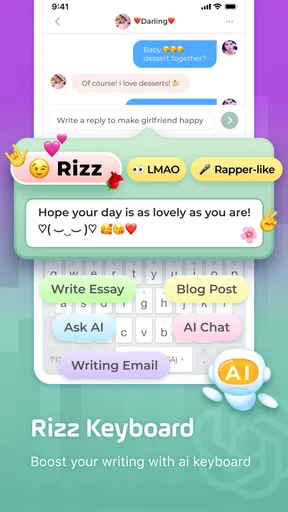
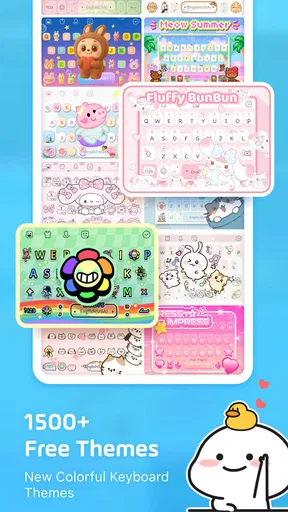
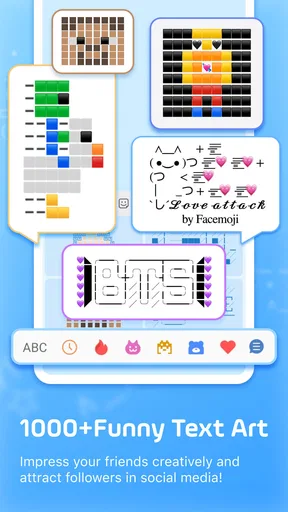
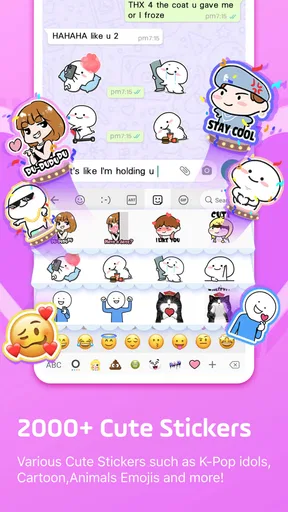
The biggest reason I’d try Facemoji is the freedom to make a keyboard feel more like my own. Its range of emoji, fonts, themes and stickers gives people who enjoy expressive chats more ways to vary a message without reaching for a separate editing app. That can be useful in group chats, casual conversations, or when a plain sentence feels a little too flat. The app’s AI-oriented keyboard features also make it interesting for people who like suggestions while composing, though I’d still choose the final emoji myself when tone matters.
Guides and Analysis on Facemoji AI Emoji Keyboard
There is a practical trade-off here: a screen full of choices can be enjoyable when I’m taking my time, but less helpful when I just need to send a quick address or answer a work message. I’d start with a restrained theme and keep the options I use most within easy reach. That way the keyboard adds personality without turning every reply into a hunt through a large collection. If your priority is typing accuracy or minimal visual clutter, your phone’s built-in keyboard may be the better fit.
Where the alternatives make more sense
Compared with a standard keyboard, Facemoji puts more attention on appearance and expressive extras. Compared with a dedicated sticker or image-editing app, a keyboard is convenient because it brings its tools into the place where messages begin. But those categories solve different problems: a keyboard is handy for quick reactions, while a separate creative app may suit someone who wants to build a more elaborate image before sharing it. I’d choose based on the kind of expression I use most, not on the size of a feature collection.
It is also worth asking whether I want to change keyboards at all. A familiar default option has the advantage of consistency across apps and can be easier to stick with if I already like its layout. A themed keyboard may take a little adjustment, and visual customization is only valuable if it doesn’t get in the way of the keys I need. Facemoji makes the most sense for someone who welcomes that bit of setup and enjoys making their conversations look less ordinary.
Make the switch a small experiment
I wouldn’t redesign everything immediately. I’d install the app, choose a theme that keeps the letters clear, and use it for a few everyday conversations before deciding whether to explore more. Then I’d notice whether I actually reach for its expressive options or keep returning to the same basic symbols. This is a useful way to separate a feature that looks appealing in a menu from one that genuinely improves how I message.
Worth Reading Before You Choose

Ludo King Makes the Most of the Minutes Between Plans

Baby Panda World Brings Quick Play to Modern Phones, but Its Game Library Feels Busy

ESPN’s Live Game View Makes Following Close Games Easier

QuizzLand Review: A Good Fit for Short Trivia Breaks, Not Every Player

Basketball Stars: Multiplayer Is Fast, but Can It Recover When Matches Go Wrong?

WEBTOON Turns Phone Updates Into a Better Reading Routine
For example, imagine replying to friends while commuting: I might want to send a quick acknowledgment, then add a sticker or a more expressive emoji when I have a moment. Facemoji can make that second part feel close at hand, but I’d avoid browsing through choices while I need to pay attention to my surroundings. The keyboard should support the conversation, not become the conversation. In a serious message, I’d also reread the text without relying on decorative cues, since an emoji or playful font can change how a sentence comes across.
People often wonder whether a personalized keyboard is useful beyond the first burst of novelty. My answer is that it depends on how often visual expression is part of your normal texting. If you regularly use emojis, stickers or themed designs, the options may earn their place; if you rarely do, the built-in keyboard is likely simpler. I’d also check the available choices and any purchase prompts directly in the app before spending, since the free starting point is enough to decide whether its style suits me.
Emoji Galore: Endless Possibilities
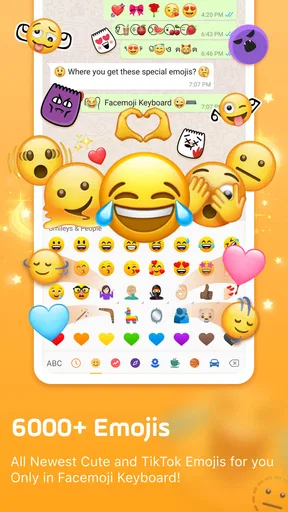
When I first opened Facemoji AI Emoji Keyboard, I was amazed by the sheer variety. It’s not just your regular smileys and hearts. We’re talking about a massive selection of emojis, GIFs, and customizable features to create your own unique expressions. It’s like a candy shop for the emoji enthusiast in me!
One of the coolest features, in my opinion, is the AI-powered emoji suggestions. It’s like the app reads your mind and suggests emojis that perfectly fit the mood of your text. This definitely makes texting faster and way more fun. Plus, the keyboard is super intuitive, learning from your usage to suggest better emojis over time.
Customization: Make It Yours
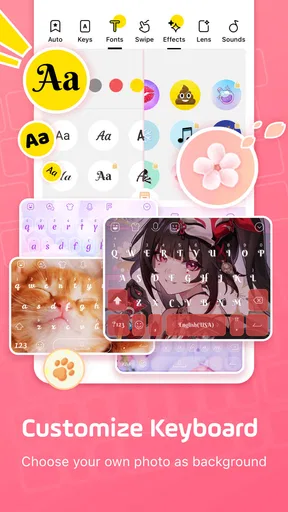
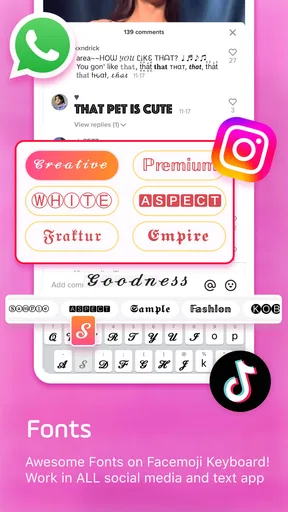
If you’re someone who likes to add a personal touch to everything, the customization options here are a dream come true. You can tweak the keyboard’s layout, colors, and even its font to match your style. It’s like having a keyboard that’s uniquely yours.
The app also offers a range of themes, which you can change according to your mood or the season. Personally, I’ve been loving the autumn theme lately. It’s a small touch, but it makes the texting experience so much more personal and engaging.
Performance and Usability
When it comes to performance, I found the app to be smooth and responsive. The emojis load quickly, and there’s no noticeable lag, even when switching between different types of emojis or themes. Plus, it’s compatible with a wide range of messaging apps, so you can use it wherever you chat.
The layout is user-friendly, making it easy to navigate through the various features. Even if you’re not very tech-savvy, you’ll find it pretty straightforward to use.
Final Thoughts
All in all, Facemoji AI Emoji Keyboard is a fantastic app for anyone who loves to add a bit of flair to their texts. Whether you’re a hardcore emoji user or just someone who likes to keep their messages lively and colorful, this app has something for you. Give it a whirl and let your texts come to life in ways you never thought possible!
With its expansive emoji library and customizable features, Facemoji has truly set a new standard for emoji keyboards. So, go ahead and download it — your texts will never be the same!
What to check before settling in
A keyboard sits in the middle of a lot of everyday activity, so I’d test more than its visual style before deciding it is a keeper. Try it in the messaging apps you use most, but also in a search box, a note, and a longer text field. That gives you a better sense of whether its layout remains comfortable when you switch tasks. A keyboard that feels fun for short messages may not be the one I want for drafting several paragraphs.
I’d also spend a minute checking legibility. A decorative font or bold theme can look appealing in a preview, yet the important question is whether the letters remain easy to distinguish at your usual screen brightness and typing speed. If the keys feel crowded or the contrast makes them harder to read, choose a simpler design rather than forcing yourself to adapt. Personalization should make typing more pleasant, not make basic accuracy feel like work.
One useful habit is to treat suggestions as optional prompts, not as a substitute for reading your message. An emoji can soften a blunt sentence, but it can also make a serious reply seem flippant. I’d type the thought first, then decide whether a suggested expression actually matches the relationship and context. That small pause is particularly helpful in conversations with colleagues, customer support, or anyone who might interpret a playful symbol differently.
Small workflows that make the extras useful
For family and friend groups, I’d use the keyboard’s expressive choices selectively: a sticker can help distinguish a quick reaction from a longer reply, while a familiar theme gives the keyboard a personal feel without changing the message itself. For a birthday or celebration chat, I might spend longer choosing a fun response; for routine planning, I’d keep the keyboard simple and focus on getting dates and details right. The value is not using every option, but having a few fitting ones close by.
When a conversation involves copying information, such as an address or a confirmation number, I’d switch mentally into accuracy mode and avoid tapping around for decorative extras. This is a small but worthwhile trade-off with any feature-rich keyboard: visual choices are useful when I want them, yet extra controls can distract from a precise task. Keeping a clear theme and learning where the ordinary keys sit makes it easier to enjoy the expressive side without sacrificing speed.
There is also a difference between personalizing for myself and choosing a style that other people will read. A font that looks distinctive on my screen may not be equally readable to everyone, and decorative text can be less suitable for accessibility or formal communication. I’d reserve unusual styling for casual messages and use straightforward text when clarity matters most. That makes the app a flexible option rather than a reason to format every conversation the same way.
Who will enjoy it, and who may not
I can see Facemoji fitting people who chat frequently, enjoy changing their phone’s appearance, and already use emojis or stickers as part of their voice. It may also suit someone who likes trying new themes and doesn’t mind taking a little time to set up a keyboard. The catalog’s reach is substantial: it has a 4.7 average from around 1.5 million ratings, and more than 100 million installs. Those figures suggest broad interest, but they don’t tell me whether its style or layout will suit an individual user.
I’d be more cautious if I rarely customize apps, prefer a consistent plain keyboard, or need a very uncluttered typing experience. People who write long messages for work may prefer a keyboard whose main appeal is practical text entry rather than visual options. And if you mainly want elaborate artwork, a dedicated creative tool is likely a better place to spend time; a keyboard is most convenient for expressions that fit naturally into a message, not for every kind of visual project.
Age is another sensible consideration for families. Facemoji carries a Teen content rating, so I’d take that into account when deciding whether it is appropriate for a younger person and when setting expectations about themes, expressive content and purchases. The app is free to start, but in-app purchases range from $0.49 to $29.99 per item. I’d look carefully at what is optional and avoid treating every paid extra as necessary to get a feel for the keyboard.
What switching actually involves
Changing keyboards is a habit change as much as a design choice. Once you settle on Facemoji, give yourself a little time to find the keys and controls you use most before judging its speed. If the new layout interrupts your usual rhythm, make one change at a time: settle on a readable theme first, then explore other personalization options later. That makes it easier to tell whether the keyboard itself works for you instead of confusing initial unfamiliarity with a lasting problem.
The app was released on April 27, 2016, and its current version is 3.6.0.5; it supports Android 5.0 and later. Those details matter if you’re checking whether it can run on an older Android device, though day-to-day comfort still depends on your own screen and habits. On iOS, I’d check the relevant app-store compatibility details before installing rather than assume the Android requirements apply. Either way, trying the basic experience first is the sensible route.
If you decide it isn’t for you, returning to your previous keyboard is a straightforward choice in principle, but the practical cost is relearning where your preferred keys are if you have already built a new routine. That is why I’d make the switch gradually and keep the first setup simple. If you do enjoy the themes and expressive tools, you can then personalize more; if not, you have limited the time spent setting up something you won’t use.
My recommendation
For me, Facemoji is best understood as a playful personalization choice rather than an essential upgrade for everyone. I’d recommend giving it a try if you want your everyday chats to feel more expressive and are happy to adjust a keyboard’s look to suit you. Its strongest case is convenience: the visual extras live where you type, so a quick reaction can be easier than opening a separate app.
I would skip it if a clean, familiar layout matters more than themes and expressive options, or if I rarely use visual flourishes in messages. I’d also choose a dedicated creative app when I want more control over a finished image, and stick with a standard keyboard when speed and minimal distraction are the priority. For everyone else, a restrained first setup and a few days of ordinary use should make the decision clear: keep it if the options become part of your natural way of chatting, and move on if they remain decoration you seldom reach for.
Pros
- Highly customizable keyboard themes.
- Wide variety of emojis available.
- Supports multiple languages.
- Intuitive and user-friendly interface.
- Frequent updates with new features.
Cons
- Contains in-app advertisements.
- Some features require internet access.
- Occasional lag on older devices.
- Limited support for certain languages.
- Premium features require payment.
FAQs for Facemoji AI Emoji Keyboard
What features does the Facemoji AI Emoji Keyboard offer?
Facemoji AI Emoji Keyboard offers a wide range of features including an extensive collection of emojis, GIFs, and stickers. It also provides AI-powered emoji suggestions, customizable keyboard themes, and multilingual support. The app enhances typing with features like swipe typing and voice input, making it a versatile choice for users.
Is Facemoji AI Emoji Keyboard safe to use?
Yes, Facemoji AI Emoji Keyboard is designed with user privacy in mind. It doesn't collect personal data without consent. However, as with any app that accesses your keyboard, it's important to be cautious about the permissions you grant and ensure you download the app from a reputable source like the Google Play Store or Apple App Store.
How do I customize my keyboard using Facemoji AI Emoji Keyboard?
Customizing your keyboard with Facemoji AI Emoji Keyboard is simple. The app allows you to change themes, fonts, and even create your own keyboard backgrounds. Users can select from a variety of pre-designed themes or use personal images for a unique look, enhancing the overall typing experience.
Does Facemoji AI Emoji Keyboard support multiple languages?
Yes, Facemoji AI Emoji Keyboard supports a wide range of languages, making it accessible for a diverse user base. The app includes language-specific dictionaries and autocorrect features to improve typing accuracy. This multilingual support is ideal for users who communicate in multiple languages.
How can I get the most out of the AI features in Facemoji AI Emoji Keyboard?
To maximize the AI features in Facemoji AI Emoji Keyboard, ensure that you enable suggestions and autocorrect in the app settings. This allows the AI to provide emoji suggestions based on your typing context. Regular updates also enhance AI capabilities, so keep the app updated for the best experience.


